Lesson 9 Overview
When you have completed this lesson, you will be able to:
  • Identify the steps to update and submit a subapplication
eGrants Scenario
Businesswoman
Listen to Sally

Audio transcript

Your Role: A new Mitigation Grants Coordinator

Supervisor's Name: Sally Watkins, Hazard Mitigation Grants Supervisor

Agency: Columbia Emergency Management Agency

Problem: The State of Columbia has received a paper subapplication from River City. The project subapplication proposes to acquire and demolish three buildings along the Washburn River that have experienced repetitive flooding.

To Date: You have completed the Application Intake process for a paper subapplication by entering it into eGrants.

The Next Step: Sally will show you the steps to review and submit a paper subapplication.

Hello. It’s your supervisor, Sally Watkins. Last week you finished entering into eGrants a paper subapplication received from River City. Now, I would like to show you how to review the subapplication to determine if it should be approved and submitted for consideration in an application.
Un-Submitted Subapplications

When working on subapplications, many times you will not have all the information you need to complete a subapplication after you first create it. You will find that subapplications may be in different stages of development. Some sections may be complete, while others may need more information.

eGrants allows you to create the subapplication, enter some information, save the subapplication, and then return to it at a later time to update and complete it.

Searching for Un-Submitted Subapplications
eGrants allows you to search for existing paper subapplications to update. These are found under the Work on Un-Submitted Paper Application(s) option in the Subgrant Application section of the Grant Applicant Homepage because they have not yet been submitted to the eGrants system.

You and Sally have already created the River City Floodplain Acquisition—Phase 1 subapplication and entered data into many of its sections. Now, you need to enter additional data. Sally is going to show you how to search for an un-submitted paper subapplication.

Scroll down to see slideshow captions.

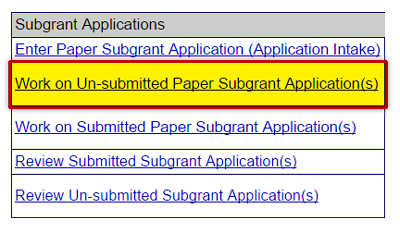
Screenshot of portion of Grant Applicant Homepage. Subgrant Applications. The task option Work on Un-submitted Paper Subgrant Application(s) is emphasized. See Appendix for alt text description.
To locate an unsubmitted paper subapplication, select the Work on Un-submitted Paper Application(s) link on the Subgrant Applications section of the Grant Applicant Homepage.
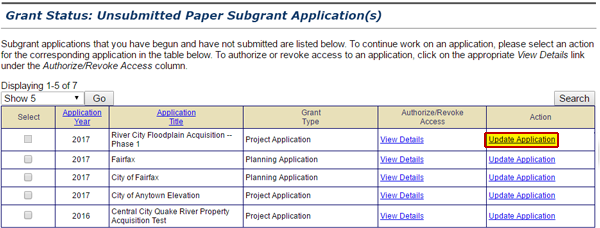
Select the Update Application link in the Action column on the Grant Status: Unsubmitted Paper Subgrant Application(s) screen to open an in-submitted paper subgrant application. See Appendix for alt text description.
Next, look for the name of the subapplication on the Grant Status: Un-submitted Paper Application(s) screen. We are working on River City Floodplain Acquisition—Phase 1, so select the Update Application link in the Action column for that subapplication title.
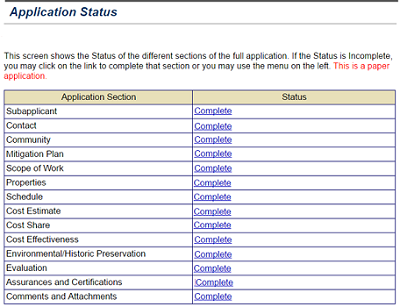
The Select column of the Application Status screen for a paper application lists Complete hyperlinks for all application sections. See Appendix for alt text description.
The Application Status screen appears. This screen lists all the sections of the subapplication and whether or not they are completed. For subapplications submitted in paper form, this screen will display the message: "This is a paper application."
Updating an Un-Submitted Subapplication

The Application Status screen lists the sections of the subapplication. Next to each section, the status of that section is displayed. The status will be either "Incomplete" or "Complete." Before an subapplication is submitted, all sections must be complete (i.e., have a status of "Complete"). To update a section, select the link in the Status column to the right of the subapplication section name.

The Select column of the Application Status screen for a paper application lists Complete hyperlinks for all application sections. See Appendix for alt text description.
Completing a Section

After completing a paper subapplication section, you will face a decision:

  • If the paper subapplication is ready for electronic submission into the eGrants system, you may select Review and Submit Application from the sidebar menu. Remember: Only Registered Users with Sign/Submit access in eGrants may electronically submit a subapplication in eGrants.
  • If the paper subapplication is not ready for electronic submission, you may select the Return to Home Page link from the sidebar menu
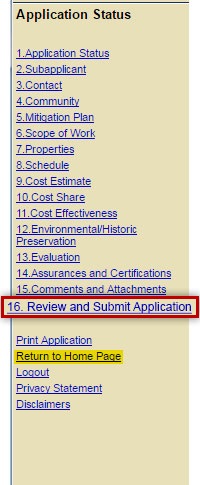
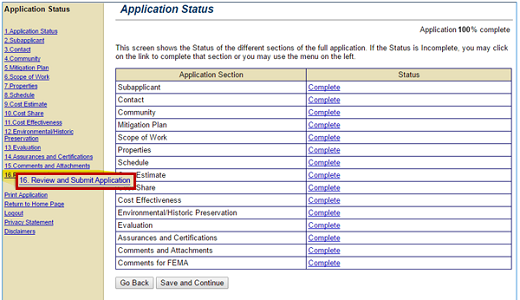
The Review and Submit Application link is available on the Sidebar Menu on the left side of the screen.
Submitting a Paper Subapplication

When all sections of the paper subapplication have the status of "Complete," the subapplication may be submitted electronically in eGrants on behalf of the Subapplicant. Only users with Sign/Submit access may electronically submit a paper subapplication into the eGrants system. The Review and Submit link in the sidebar menu facilitates this process.

Once submitted, the paper subapplication will be added to the list of all subapplications available to be attached to an application. The number assigned to the paper subapplication will be prefaced with a p to indicate that it was compiled and submitted on paper by the Subapplicant, but entered into the eGrants system by the Applicant.

Sally has confirmed that the River City Floodplain Acquisition—Phase 1 subapplication is now ready for submission.

Note Icon
Note
Always print the electronic version of the paper subapplication with the submission date and time for reference.
Submitting a Paper Subapplication (continued)
Since you do not have Sign/Submit access, Sally will need to submit the River City Floodplain Acquisition—Phase 1 subapplication into the eGrants system on behalf of the Subapplicant. She will show you the process.

Scroll down to see slideshow captions.

Screenshot of portion of Grant Applicant Homepage. Subgrant Applications. The task option Work on Un-submitted Paper Subgrant Application(s) is emphasized. See Appendix for alt text description.
First, I need to locate the subapplication in eGrants. On the Grant Applicant Homepage, I select the Work on Un-submitted Paper Application link.
Select the Update Application link in the Action column on the Grant Status: Unsubmitted Paper Subgrant Application(s) screen to open an in-submitted paper subgrant application. See Appendix for alt text description.
I look for the River City Floodplain Acquisition—Phase 1 title on the Grant Status: Un-submitted Paper Application(s) screen. Then, I select the Update Application link in the Action column for that subapplication title.
When all sections of an application are completed, select the Review and Submit Application link from the Sidebar menu on the left.
I know that all the sections of the subapplication are complete and accurate. So, I can select the Review and Submit Application link from the sidebar menu on the left side of the screen.
To submit a subgrant application, a user with Sign/Submit privileges checks the acknowledgement checkbox and selects the Submit Application button. See Appendix for alt text description.
Then, I scroll down to the acknowledgement box at the bottom of the Review and Submit screen. There, I need to select the electronic signature checkbox to indicate that I am signing the subapplication. Finally, I select the Submit Application button.
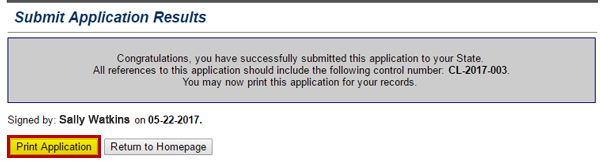
The Submit Application Results screen displays congratulations notice on the successful submission of an application to the state. Print Application button is highlighted and emphasized. See Appendix for alt text description.
The Submit Applications Results screen displays the confirmation that the River City Floodplain Acquisition—Phase 1 subapplication was successfully submitted to the State of Columbia Emergency Management Agency. To keep a record of the submission, I need to select the Print Application button. It is important to keep a paper copy of the subapplication on file and note the control number assigned to the subapplication.
Lesson 9 Summary

In this lesson, you learned about how to:

  • View un-submitted paper subapplications
  • Update un-submitted paper subapplications
  • Submit paper subapplications to the eGrants system

Some key points from this lesson:

  • Users may begin a paper subapplication in one eGrants session and complete it in a different session.
  • When returning to eGrants to update information from a paper subapplication already begun, users should choose the Work on Un-submitted Paper Subgrant Application(s) link from the Grant Applicant Homepage.
  • eGrants users must have Sign/Submit access in eGrants to electronically submit a completed paper subapplication into the eGrants system.