Releasing a Subapplication Section for Revision
Earlier in this lesson, Sally showed you how to make requested revisions by updating the application and one section of a subapplication. Now, she will demonstrate how to release a section of a subapplication to the Subapplicant for revision.

Scroll down to see slideshow captions.

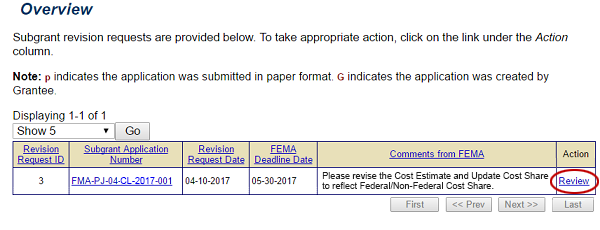
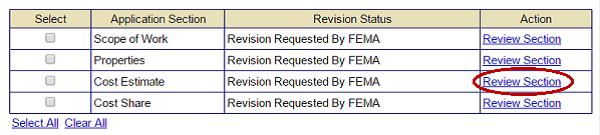
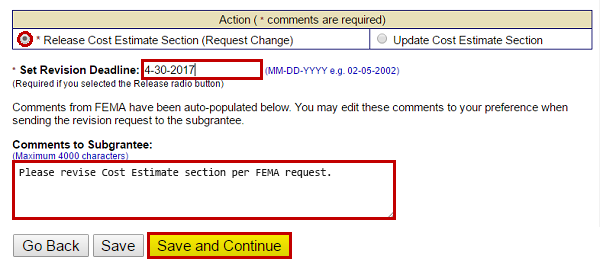
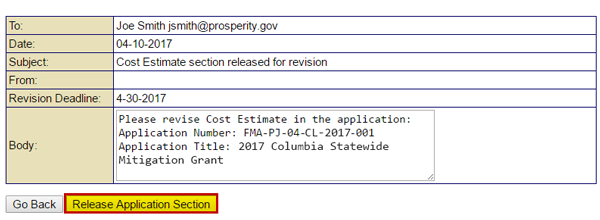
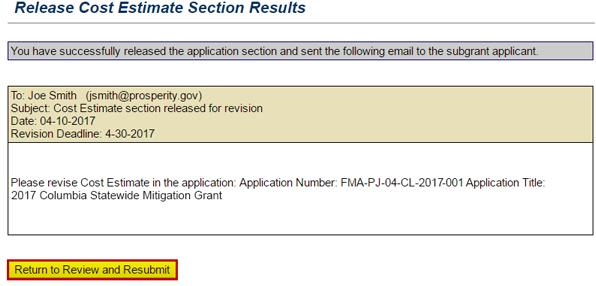
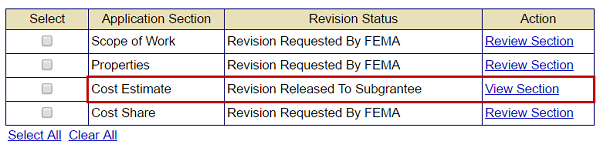
Select the Review link (emphasized) in the Action column on the revision Overview screen to respond to a FEMA revision request for a subgrant application. See Appendix for alt text description.The list of subgrant application sections that must be revised are displayed. The Review Section link in the Action column of the Cost Estimate section is circled. See Appendix for alt text details.The Release Cost Estimate Section (Request Change) radio button (selected, emphasized), Revision deadline 04-30-2017 (emphasized), comments (text field emphasized), and Save and Continue (emphasized). See Appendix for alt text description.A sample notification email to the Subgrant Applicant asks for revisions to the released subgrant application section. The Release Application Section button is emphasized. See Appendix for alt text description.A confirmation notice appears after the email is sent and the subgrant section is released to Subgrant Applicant for revision. The Return to Review and Resubmit button is emphasized. See Appendix for alt text description.On the Review and Resubmit Application screen the released Cost Estimate section appears with a "Revision Released to Subgrantee" Revision Status and View Section link. See Appendix for alt text description.
Slideshow element Start button is disabledSlideshow element Back button is disabled1 of 6Slideshow element forward button with cursor onButton to move to end of a Slideshow with cursor on
Listen to Sally

From the Overview screen, locate the subapplication that needs to be revised. Review the requested subapplication revisions and comments provided by FEMA. In this case, the Comments from FEMA read: “Please revise the Cost Estimate and Update Cost Share to reflect Federal/Non-Federal Cost Share.” Select the Review link in the Action column. Select this link for the full text of the image.
Listen to Sally

The Review and Submit Application screen appears. We need to release the Cost Estimate section of the subapplication to the Subapplicant to revise. Select the Review Section link for the Cost Estimate section. Select this link for the full text of the image.
Listen to Sally

The Review Cost Estimate screen is displayed. In the Action section, select the radio button to Release the Cost Estimate Section. You need to set a Revision Deadline. Make sure to set it in advance of the FEMA revision deadline. So, type "04-30-2017." Now you can enter comments for the Subapplicant, if appropriate. In this case, in the Comments to Subgrantee text field, enter “Please revise Cost Estimate section per FEMA request.” Then, select the Save and Continue button. Select this link for the full text of the image.
Listen to Sally

An e-mail is displayed with information that, if you have enabled the e-mail Administrative option, will be sent to the Authorized Agent and the Point of Contact identified in the Contact section of the subapplication. Select the Release Application Section button. Select this link for the full text of the image.
Listen to Sally

You will get a confirmation that the subapplication section was released to the Subapplicant. Select the Return to Review and Resubmit button to return to the list of subapplication revision requests. Select this link for the full text of the image.
Listen to Sally

The status of the Cost Estimate section is now “Revision Released to Subgrantee.” Select this link for the full text of the image.