Lesson 12 Overview
Upon completion of this lesson, you should be able to:
  • Identify the steps to view and print a FEMA award package
eGrants Scenario
Businesswoman
Listen to Sally

Audio transcript

Your Role: A new Mitigation Grants Coordinator

Supervisor's Name: Sally Watkins, Hazard Mitigation Grants Supervisor

Agency: Columbia Emergency Management Agency

Problem: You just received an e-mail stating that the application was approved by FEMA.

To Date: You have created an application and it has been submitted, revised, and resubmitted.

The Next Step: Sally will show you how to print the award package documents.

Hello. Sally here. I heard you got an e-mail from FEMA letting you know that the Columbia Flood Mitigation Assistance application was approved. Now we need to review the award package in eGrants. This is exciting because it means the federal funds are available to begin the flood mitigation project in Columbia.
Award Packages
When FEMA approves an application for federal award, an e-mail message is sent to the primary and alternate Points of Contact (POCs) provided in the application, notifying them that the federal award has been approved, the subawards have been obligated, and the FEMA award package is available to be viewed in eGrants.

The award package has three parts:

  • Award Letter
  • Agreement Articles
  • Obligating Document for Award/Amendment (FEMA Form 76-10A)

Once an award package has been created, award funds are obligated by FEMA. It is no longer necessary for Applicants to approve and sign an award package in order to accept the federal award. Funds are immediately available to Recipients and Subrecipients.

Recipients can view the award package and print all or parts of the package for their records. The award package is Read-Only and cannot be modified in any way.
Viewing an Award Package
On the Grant Applications screen of eGrants, approved applications are identified by having an “Obligated" status.

Sally Watkins saw in eGrants that the Columbia Emergency Management Agency application has been approved by FEMA for award. She can now view the award package. Sally will demonstrate how to view and print the award package.

Scroll down to see slideshow captions.

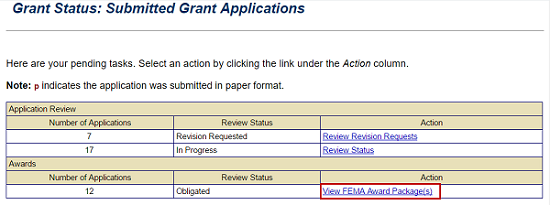
Select the View FEMA Award Package(s) link on the Grant Status: Submitted Grant Applications screen to view a grant that has been awarded. See Appendix for alt text description.
The Awards section of the Grant Status: Submitted Grant Applications screen identifies the number of obligated award packages. To see all of Columbia's approved federal awards I will select the View FEMA Award Package(s) link in the Action column.
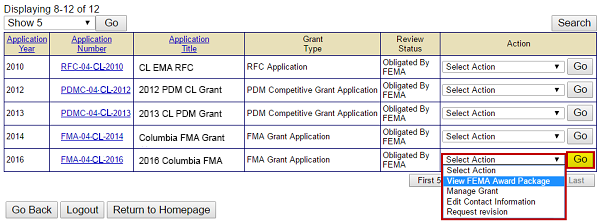
Select the View FEMA Award Package drop-down option then the Go button on the Grant Status: Submitted Grant Applications screen to view the documentation of subgrant awards from FEMA. See Appendix for alt text description.
All the applications that have been approved and have award packages are listed. For the recently approved 2016 Columbia FMA application, I will select the Select Action drop-down menu in the Action column. The menu has four options: View FEMA Award Package, Manage Grant, Edit Contact Information, and Request Revision. To read the award package, I will need to select the option to "View FEMA Award Package" and then the Go button.
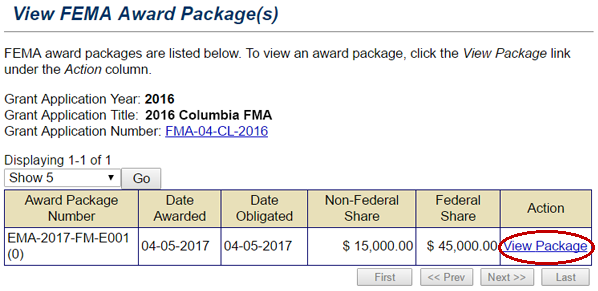
Select the View Package link in the Action column of the View FEMA Award Package(s) screen to view links to the three documents that constitute the Award Package. See Appendix for alt text description.
The View FEMA Award Package(s) screen is displayed. This screen displays the application year, title, and number. Below it lists the individual award package numbers for the subawards, their award and obligation dates, and their Non-Federal Share and Federal Share amounts. I can review each award package by selecting the View Package link in the Action column.
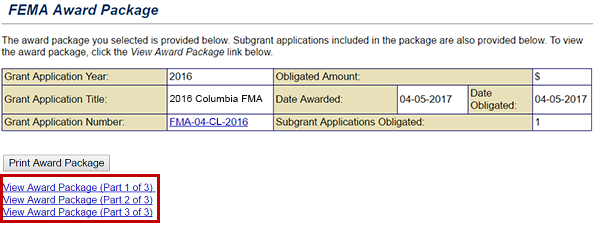
Select the related links to view the 3 parts to a FEMA Award Package: Part 1-Award Letter, Part 2-Agreement Articles, and Part 3-Obligating Document for Award/Amendment. See Appendix for alt text description.
The FEMA Award Package screen is displayed. This is the screen that allows me to view the three parts of the FEMA award package. The Award Letter is in Part 1, the Agreement Articles are in Part 2, and the Obligating Document for Award/Amendment (FEMA Form 76-10A) is in Part 3. I can view each part of the award package by selecting the appropriate link.
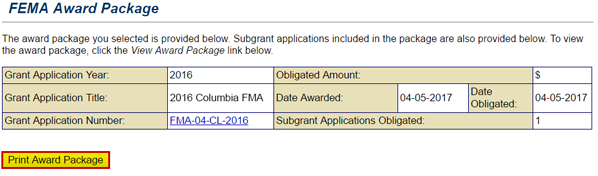
Select the Print Award Package button (emphasized) on the FEMA Award Package screen to print all three parts of an Award package. See Appendix for alt text description.
I can also print a copy of the entire award package by selecting the Print Award Package button.
Select the Application Number link (circled) to view details about the subgrant application included in the FEMA award package. The federal and non-federal share are also listed. See Appendix for alt text description.
From this screen, I can also view the sections of any subapplications included in the application by selecting a link in the Application Number column.
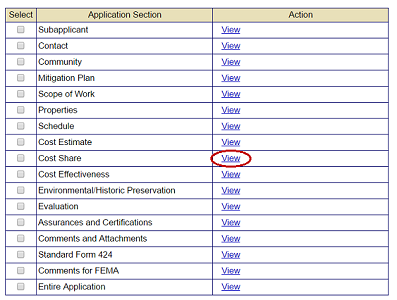
Select the View link in the Action column to review sections of a subgrant application included in a grant application. The link for the Cost Share section is circled in example. See Appendix for alt text description.
For example, I can review the Cost Share section of this subapplication by selecting the View link in the Action column.
Lesson 12 Summary
In this lesson, you learned about the parts of an award package.

Some key points from this lesson are:
  • FEMA-approved applications have a status of "Obligated."
  • Award packages are shown in the Awards section of the Grant Status: Submitted Grant Applications screen.
  • An award package contains three parts:
    • The Award Letter
    • The Agreement Articles
    • The Obligating Document for Award/Amendment (FEMA Form 76-10A)
  • You can print a copy of the award package