Paper Files

In many cases, documents to be attached within the Comments and Attachments section of a subapplication may exist only as a hard copy or in a paper form. In that case, the Subapplicant must mail the documents to the Applicant, and the Applicant will scan them when possible and attach them electronically to the subapplication. When it is not possible to scan the mailed documents, the Applicant will forward the paper copies onto FEMA. It is important that information about the mailing of documents is entered into the eGrants system. This ensures that a complete application file is created with reference to any non-electronic information.

Sally wants to show you how to reference a supporting paper document being sent through the mail.

Scroll down to see slideshow captions
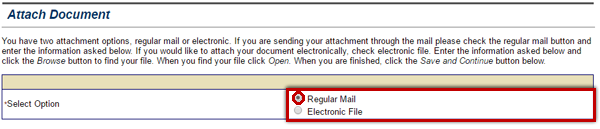
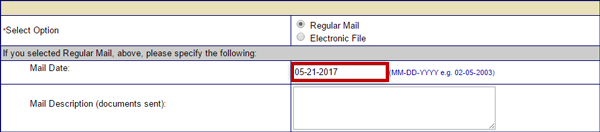
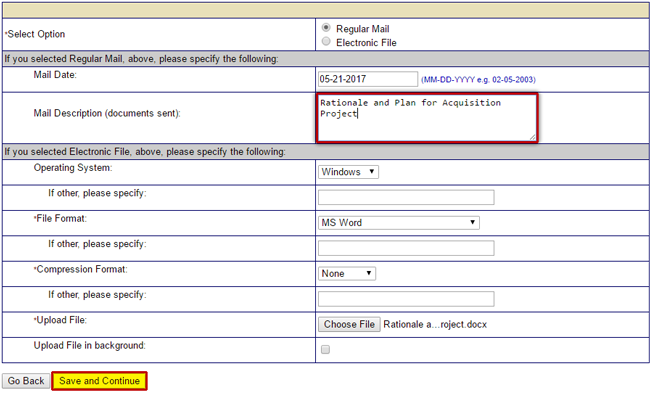
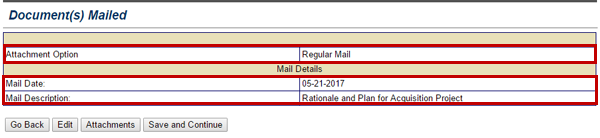
To indicate that you are sending a document via the U.S. Postal system, select the Regular Mail radio button to the right of the Select Option label.You need to record when you sent a document through Regular Mail, to do so select the Mail Date field and enter the date.To document the item being sent via Regular Mail, select the Mail Description field and type a brief description.The Documents Mailed screen displays the details about the items sent via Regular Mail including the mail date and a description of the item.
Slideshow element Start button is disabledSlideshow element Back button is disabled1 of 4Slideshow element forward button with cursor onButton to move to end of a Slideshow with cursor on
Listen to Sally

If we can't scan the document to create an electronic file or the electronic file is too large to upload, it still can be included as supporting evidence in the subapplication. We just need to send it to FEMA in the mail. To indicate that you are sending a document via the U.S. Postal system, select the Regular Mail radio button to the right of the Select Option prompt on the Attach Document screen. Select this link for the full text of the image.
Listen to Sally

To create a record of the transaction, you'll need to enter the date when the document was mailed to FEMA. I put the document in the mail this morning. So, type “05-21-2017” into the Mail Date text field. Select this link for the full text of the image.
Listen to Sally

Like with the electronic file, you need to type a brief description of the item being sent. Type “Rationale and Plan for Acquisition Project” in the Mail Description text field. Then, select the Save and Continue button. Select this link for the full text of the image.
Listen to Sally

The Document(s) Mailed screen appears and displays the mail date and the description of the item being sent via Regular Mail. Select this link for the full text of the image.